Project Portfolio Analysis
 Within MS Project
MS Project
Creating Master Plans
 Features
 Easy to create
Insert Enterprise
Projects into a “local” Project Plan
Allows for all standard
functionality within MS Project, but for the entire Portfolio of projects,
including;
·
Standard Gantt Chart
Views, but for the entire Portfolio
·
Linking of Tasks and
Projects within the Portfolio
·
Resource Use (*note
when reviewing the Resource Usage, add “Project” column to view)
Allows for “what if”
analysis of portfolio without impacting the schedules
Set Up
Creating a Blank Project Plan
·
All Portfolio Project
Plans must be first loaded to the enterprise
·
Open MS Project using
the “connect” option
·
Click on “File” and
then “New” Options (located @ upper left of the screen)
·
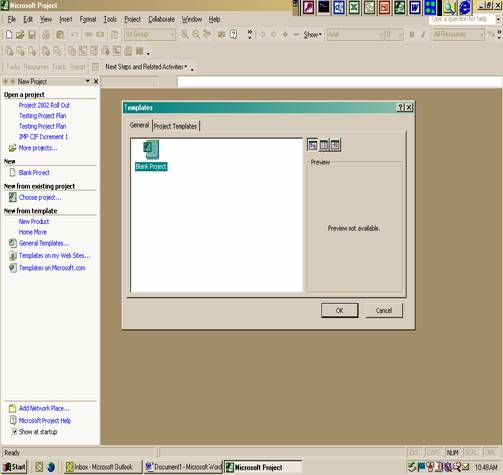
Click on “General
Template” option under the “New from Template” Section
·
Click on “Blank
Project”


Inserting
On the first line of
the project plan enter Portfolio Name
On the second line
begin inserting project plans by:
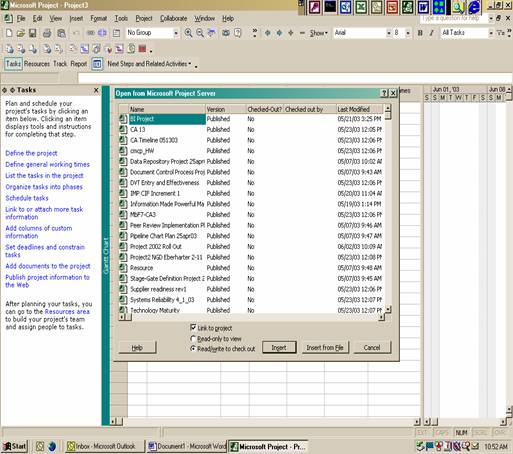
Clicking on “Insert”
Tab at the top
Click on “Project”
option
The application will
display project list to choose from
Double click on project
plan to be loaded into Portfolio
The application will
load the
Continue to insert all
the project plans by repeating the above process

Saving
Your Master Plan to the
Note: Saving a “Master
Plan” onto the Enterprise Server will adversely impact resource estimation.
Don’t do it.
Click on the “File” tab
at the upper left hand corner of the screen
Click on the save
option

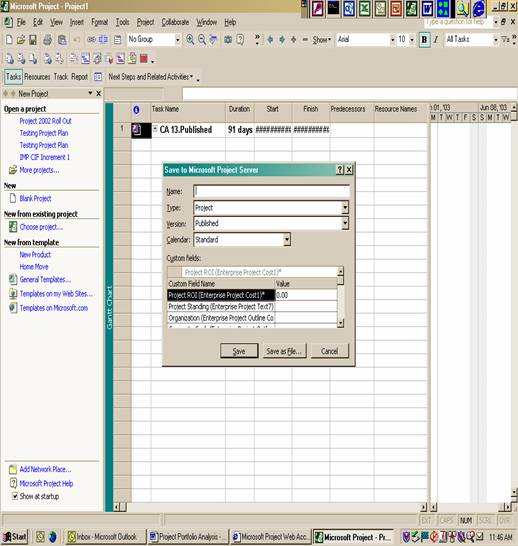
Do not enter any of the
information on this page
Click on the “Save on
File” button

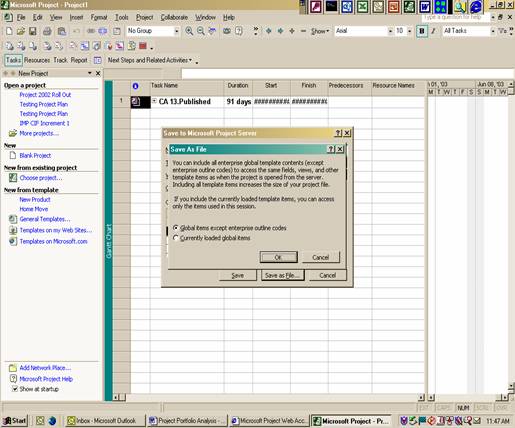
Click on the “Okay”
Button
The system will then
bring up your browser
Choose the directory
you wish put the project and click the “SAVE” button
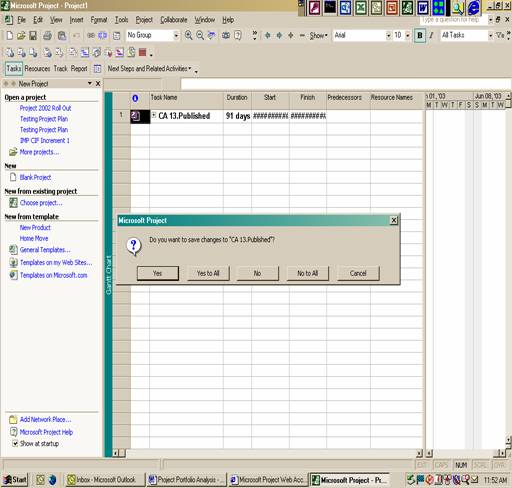
Depending if the is the
first time you save the master plan or not, the application may ask you if you
want to save / publish any changes to the individual plan. It will also ask you
this question when exiting the master project plan. Be forewarned, answering
“yes” to this question will change the project plans.
A note on loading a Master Plan: When pulling up a Master Plan do not be surprised if it
takes a few extra moments to load the information into the project. The project
information has to be sent from the server into the project plan.